Don't Founder - The Roll20 Veteran's Guide to Foundry's FabU

This guide is intended for FabU players on the new Roll20 sheets who are switching over to Foundry’s Project FU. There will be several individual posts, each one talking about a different aspect of the experience.

Quick advice:

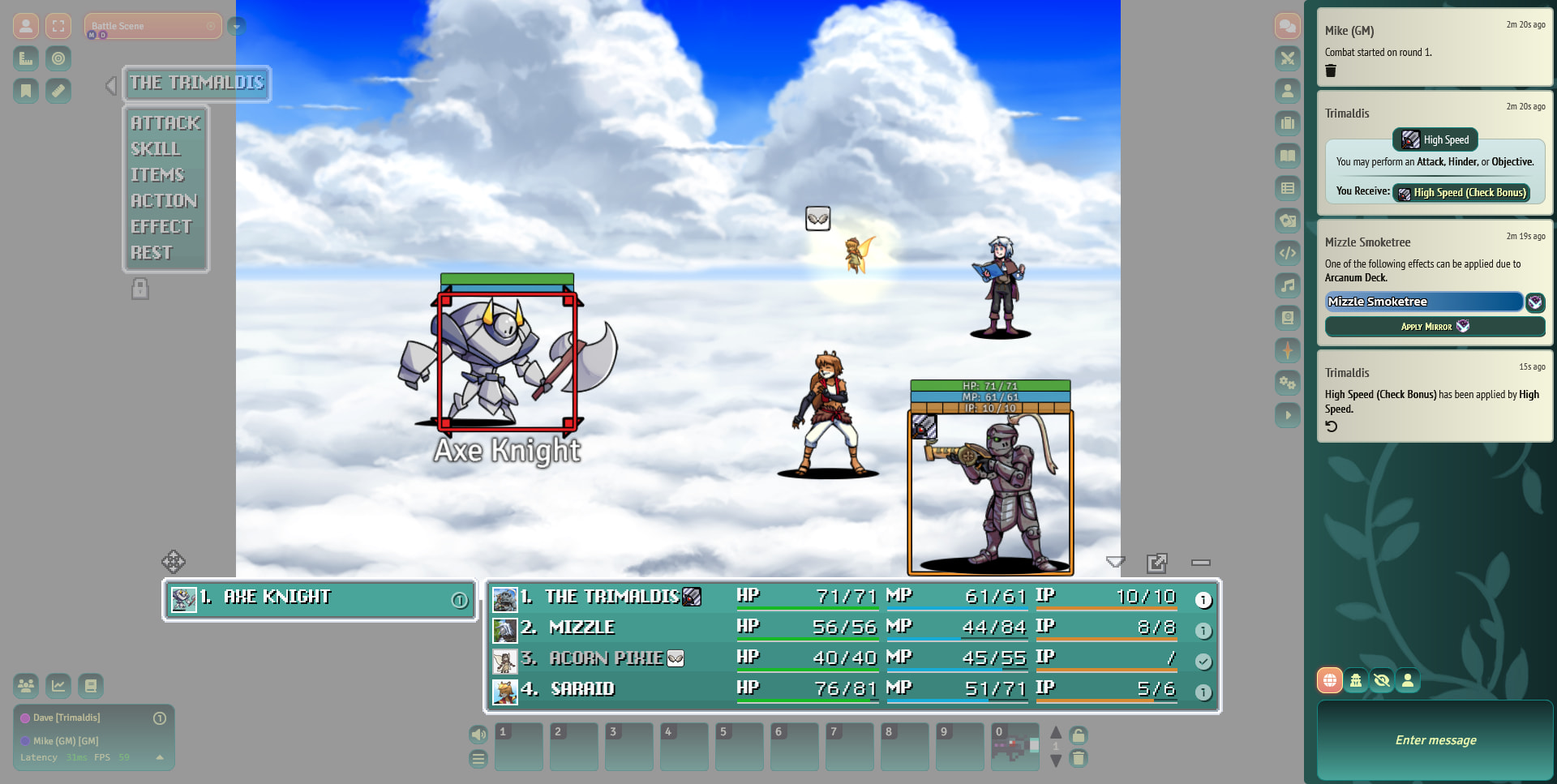
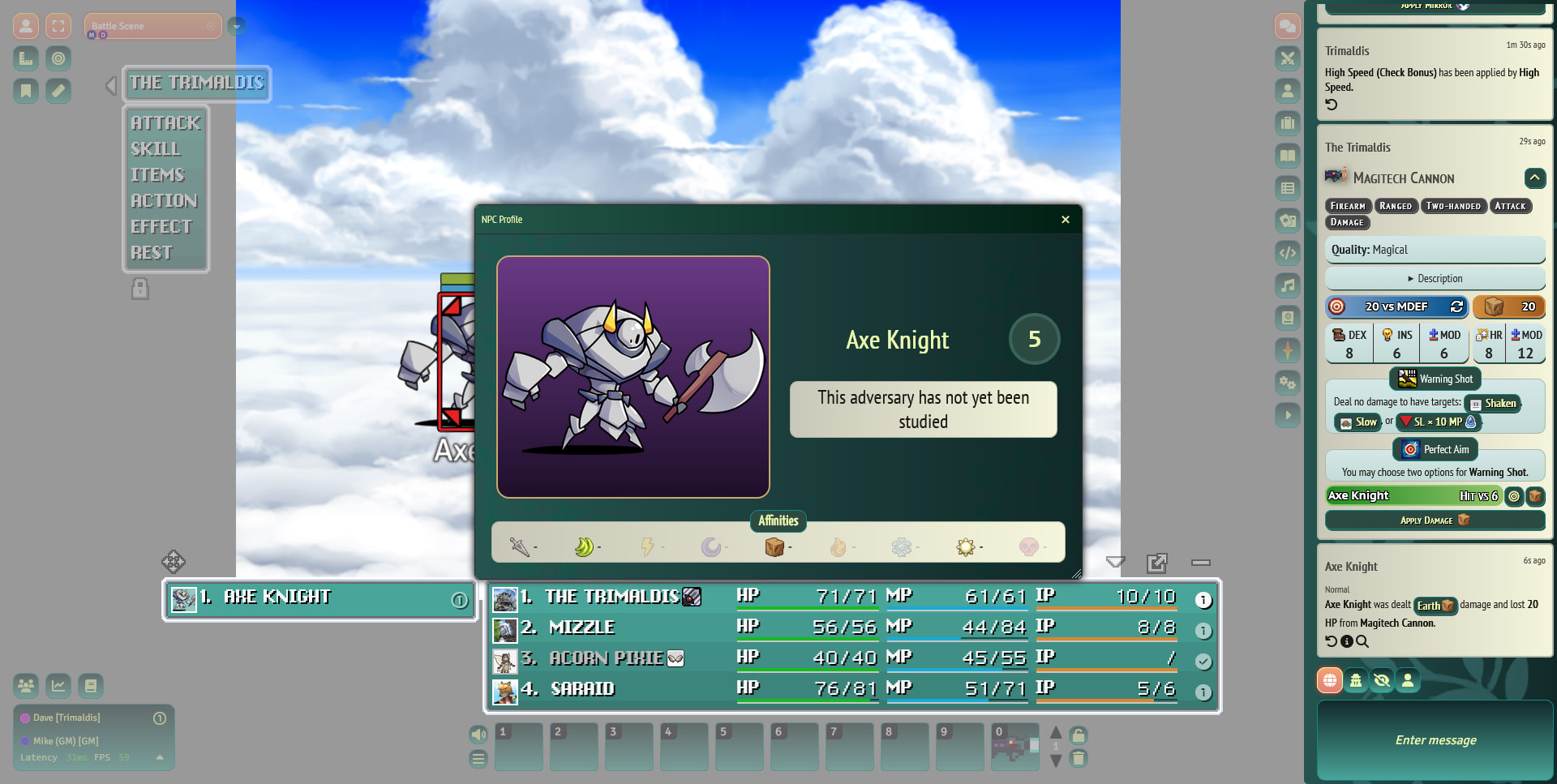
  • When in battle, use the on-screen action menu to do your stuff
  • When not in battle, a combination of Favorites, the Hotbar, and the Overview tab should have 95% of the stuff you care about
  • There’s no separate “Edit” mode you have to worry about, just go to the right tab and add/edit/remove stuff

General navigation

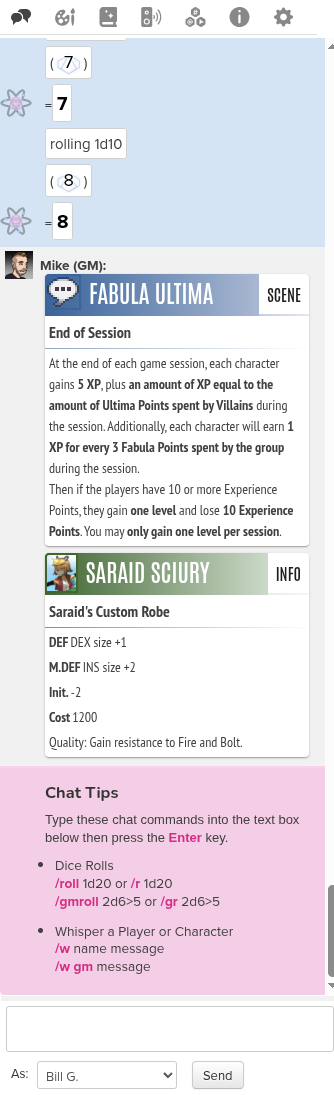
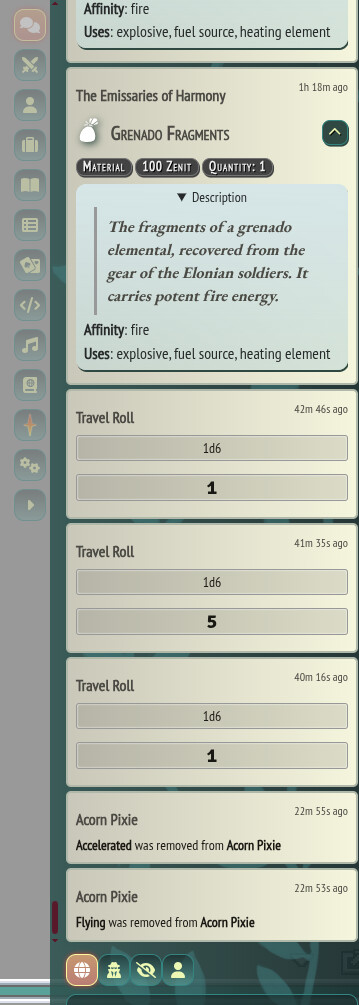
The actual arrangement of buttons and the overall feel of the UI may be very different, but Foundry is organized a lot like Roll20. For example, the row of buttons, top right on Roll20 (Chat, Journal, etc.) are very similar to the vertical stack of buttons on the right of the Foundry screen.


Chat boxes are pretty similar, with one exception. In Foundry, if you don’t have any of the side buttons activated, chat messages will briefly show up at the bottom right of the screen and then disappear.


Characters and Journal Entries

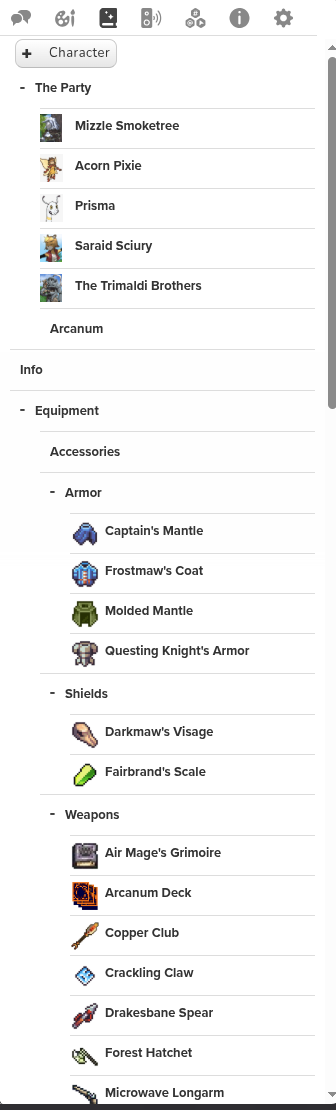
In Roll20, there’s a single journal containing all of the PCs, NPCs, items, etc.

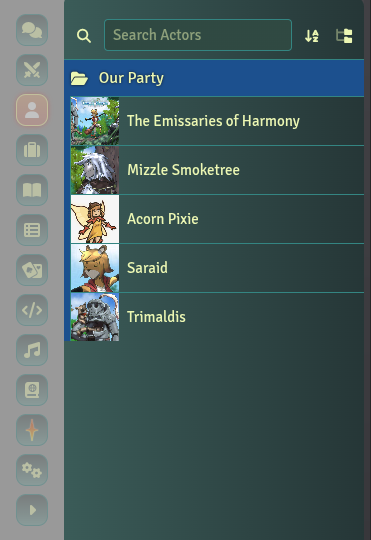
In Foundry, it’s almost the same. You want the “Actors” button, third button down.

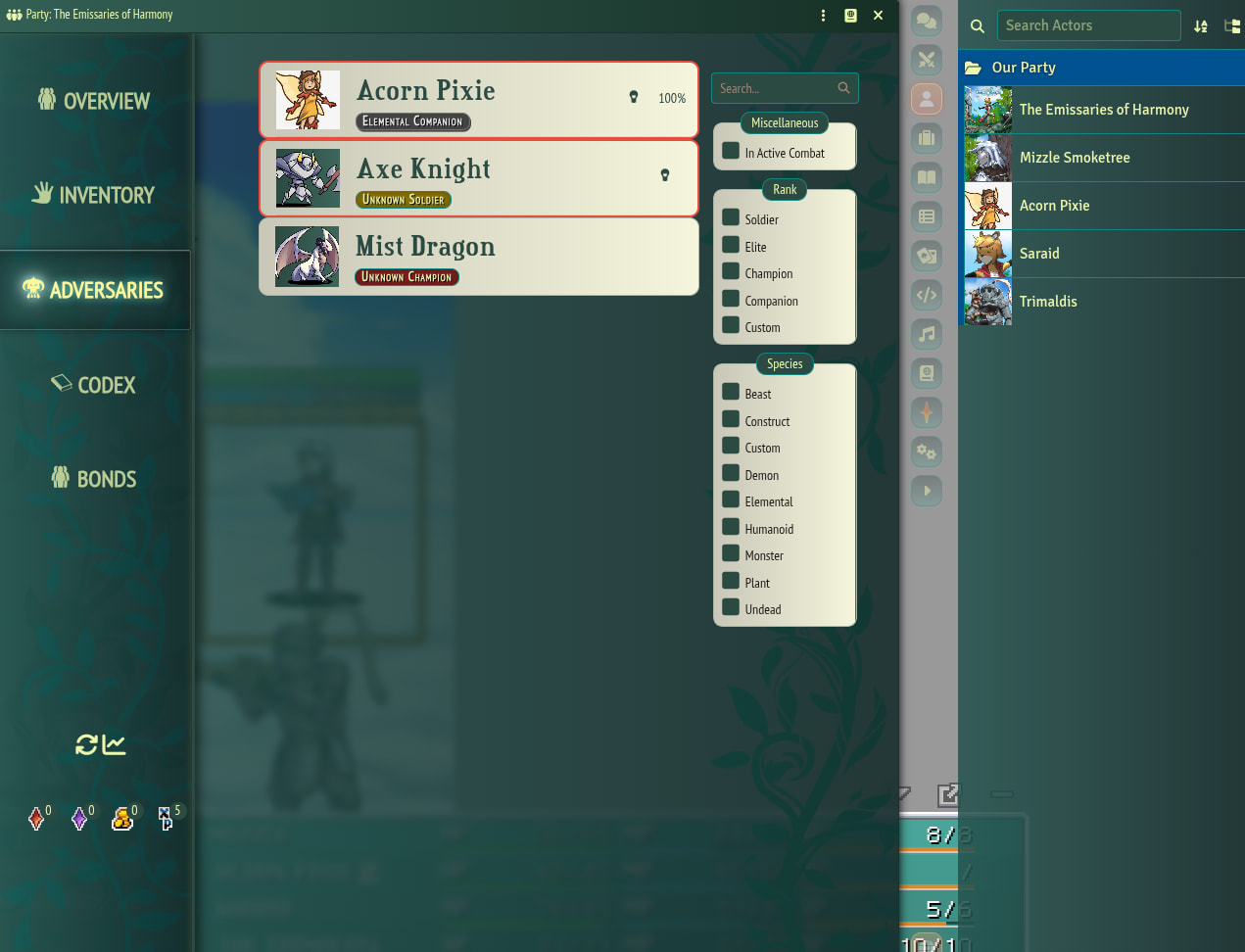
You can see the PCs listed individually. For everyone else, click on “the Emissaries of Harmony” in the Actors sidebar.

Character Sheet Specifics

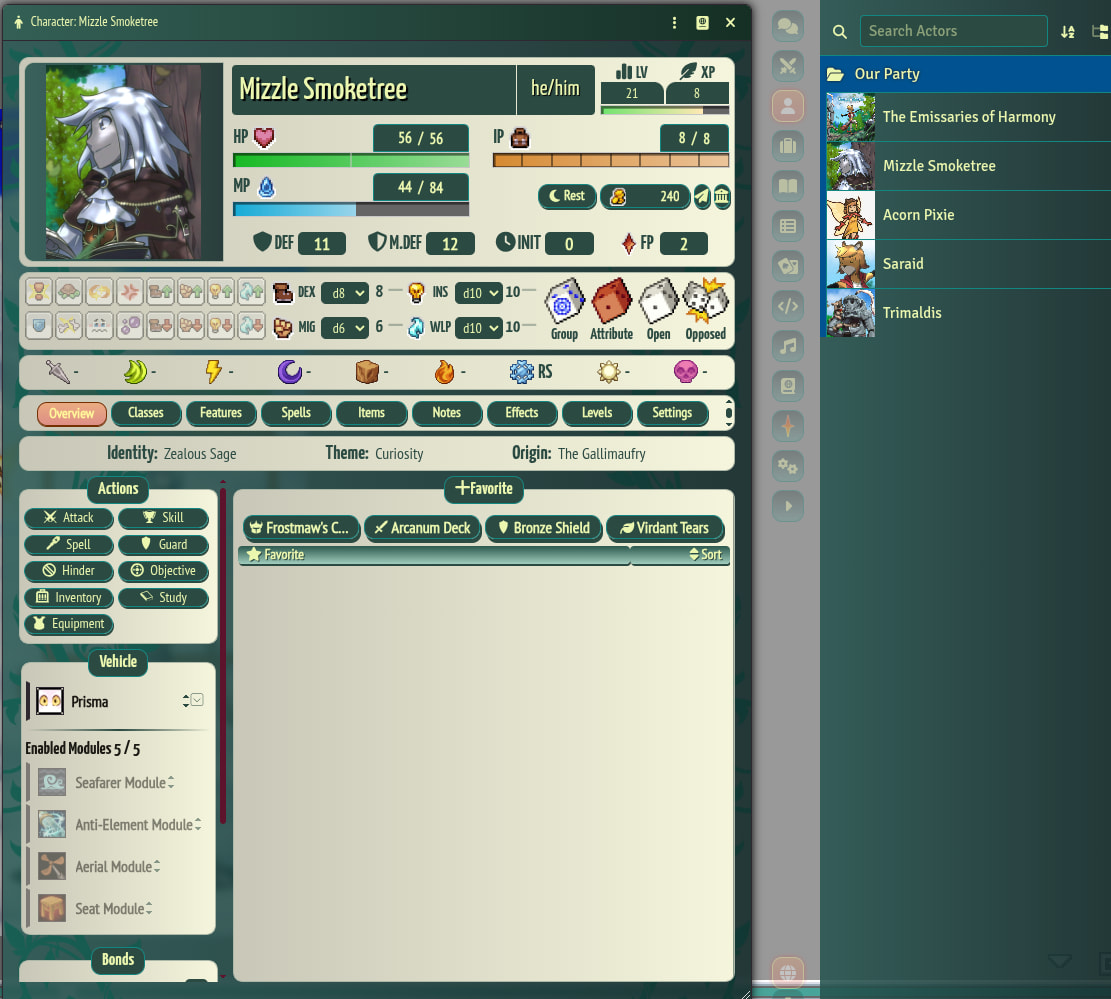
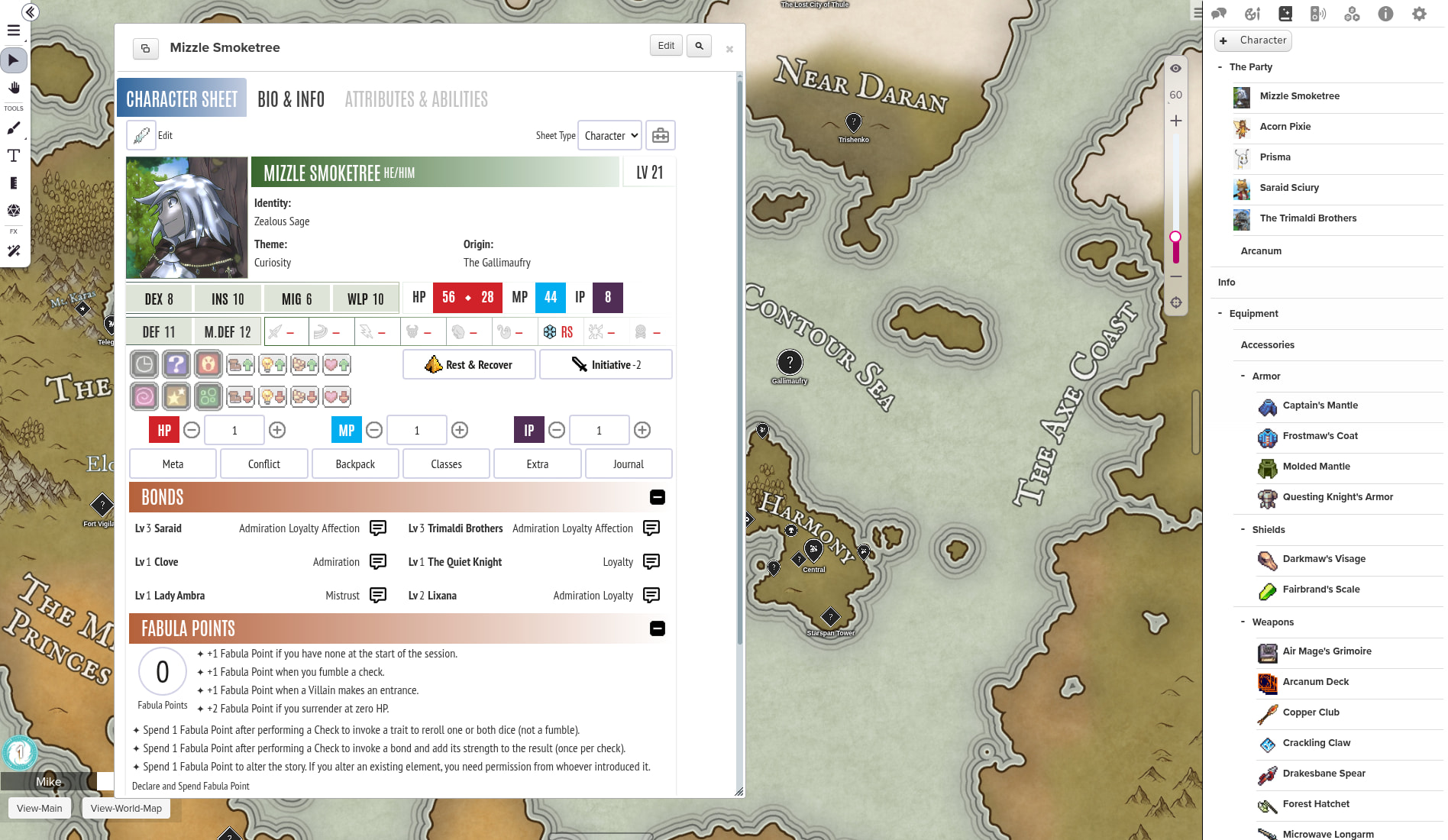
Note that even if something is on a different tab, you can often click the Star (:star:) button to mark it as a “Favorite”. Favorites show up on the Overview tab of the sheet.

Shared Sheet Top

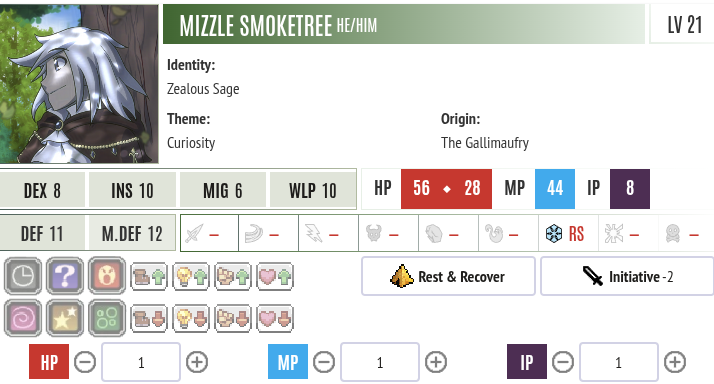
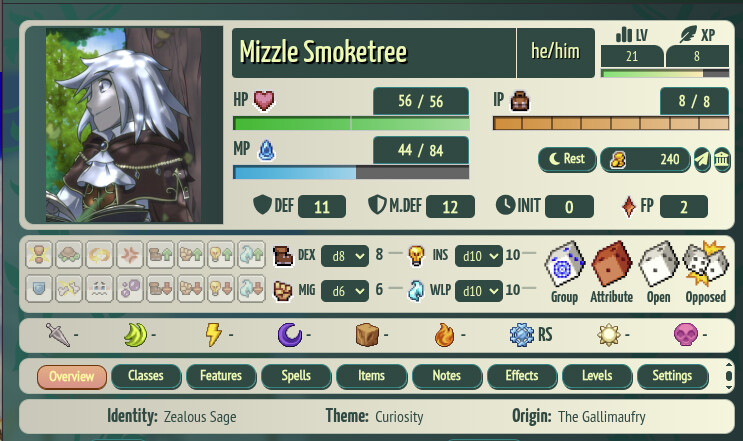
Both sheets put the basics (HP, MP, IP, level, resistances, attributes, etc.) at the top and will show this information regardless of which tab you’re on.


Specific Sheet Elements

Bonds: Meta tab (Roll20), abbreviated on Overview and detailed on Notes tab (Foundry)

Classes: Classes tab (Roll20 and Foundry). Click on a Class name to collapse or unfold it, showing individual class skills.

Equipment: Backpack tab (Roll20), Items tab (Foundry). To change what’s equipped, click on the “Equip?” column. Left-click for Main Hand, right-click for Off Hand or to unequip.

Experience Points: Meta tab (Roll20), “XP” on the shared sheet top (Foundry)

Fabula Points: Meta tab (Roll20), “FP” on the shared sheet top (Foundry)

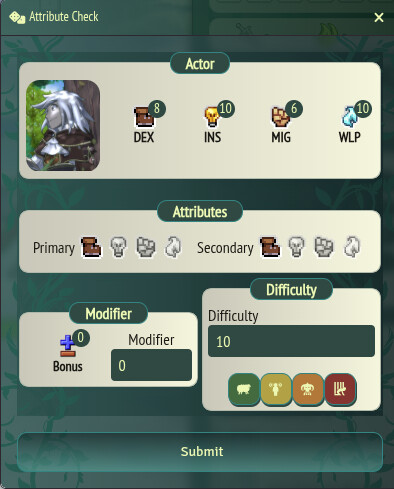
Frequently Used Checks: Conflict tab (Roll20), Group/Attribute/Open/Opposed buttons on the shared sheet top (Foundry)

There’s no way to predefine certain attribute combinations, e.g. “Persuade” or “Dodge”, as Roll20 does. You choose icons for both attributes to roll, then enter the modifier and difficulty values if any.

Inventory: Backpack tab (Roll20), Items tab (Foundry). To use an item, use the on-screen action menu or Actions > Inventory on the Overview tab. To spend IP manually, edit it on the top right of the shared sheet top.

Other Items: Backpack tab (Roll20), Items tab (Foundry)

Rituals: Conflict tab (Roll20), Spells tab (Foundry)

Spells: Conflict tab (Roll20), on-screen action menu, Actions > Spell on Overview tab (Foundry). The Spells tab lets you edit these.

Weapons: Conflict tab (Roll20), on-screen action menu, Actions > Attack on Overview tab (Foundry). The Items tab lets you edit these.

Hotbar

There’s a hotbar at the bottom of the Foundry screen. You can drag weapons, spells, class abilities, etc. down to this bar for frequently-used stuff.
Combat Basics

I want to roll one of my attacks or spells

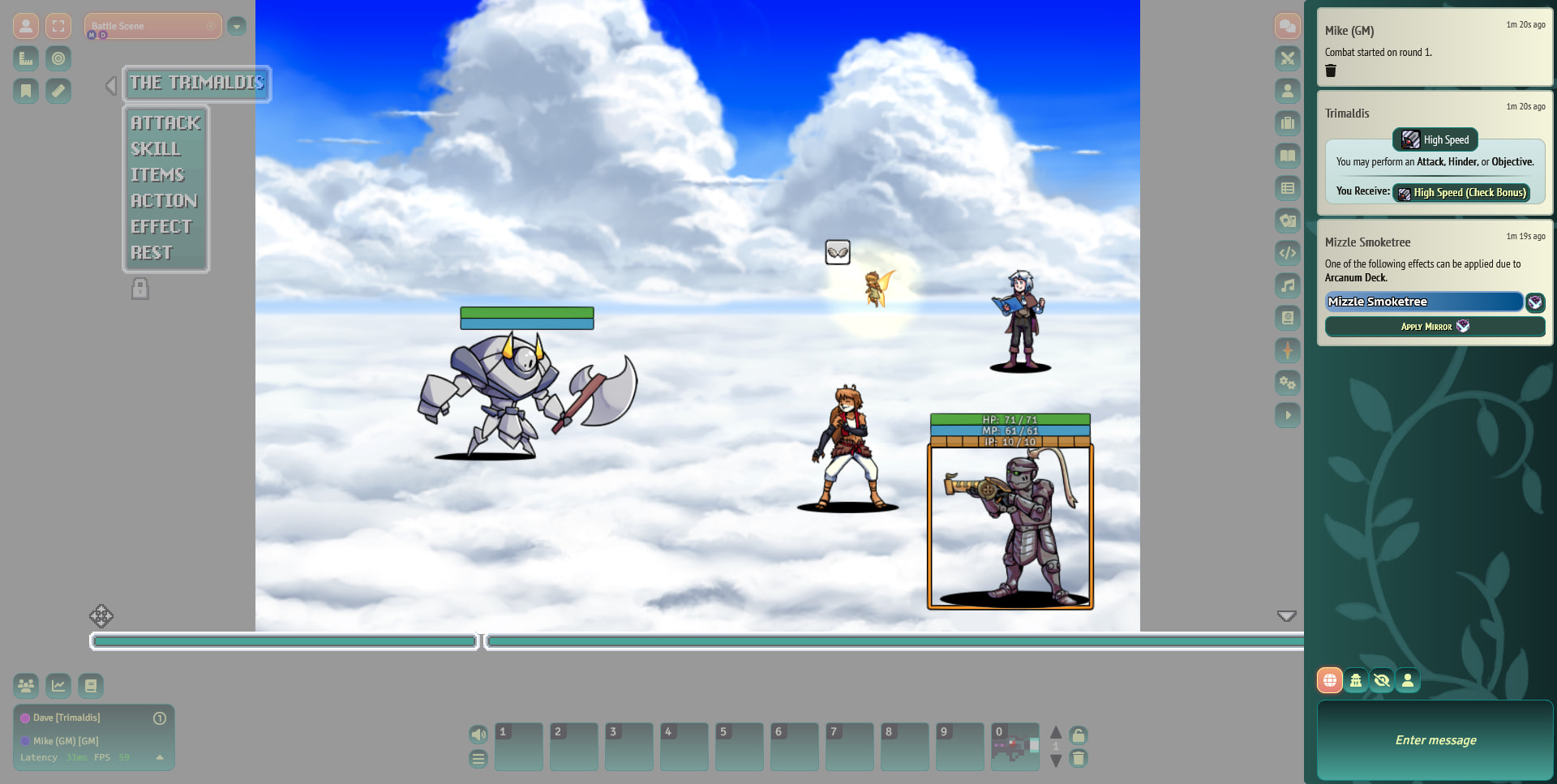
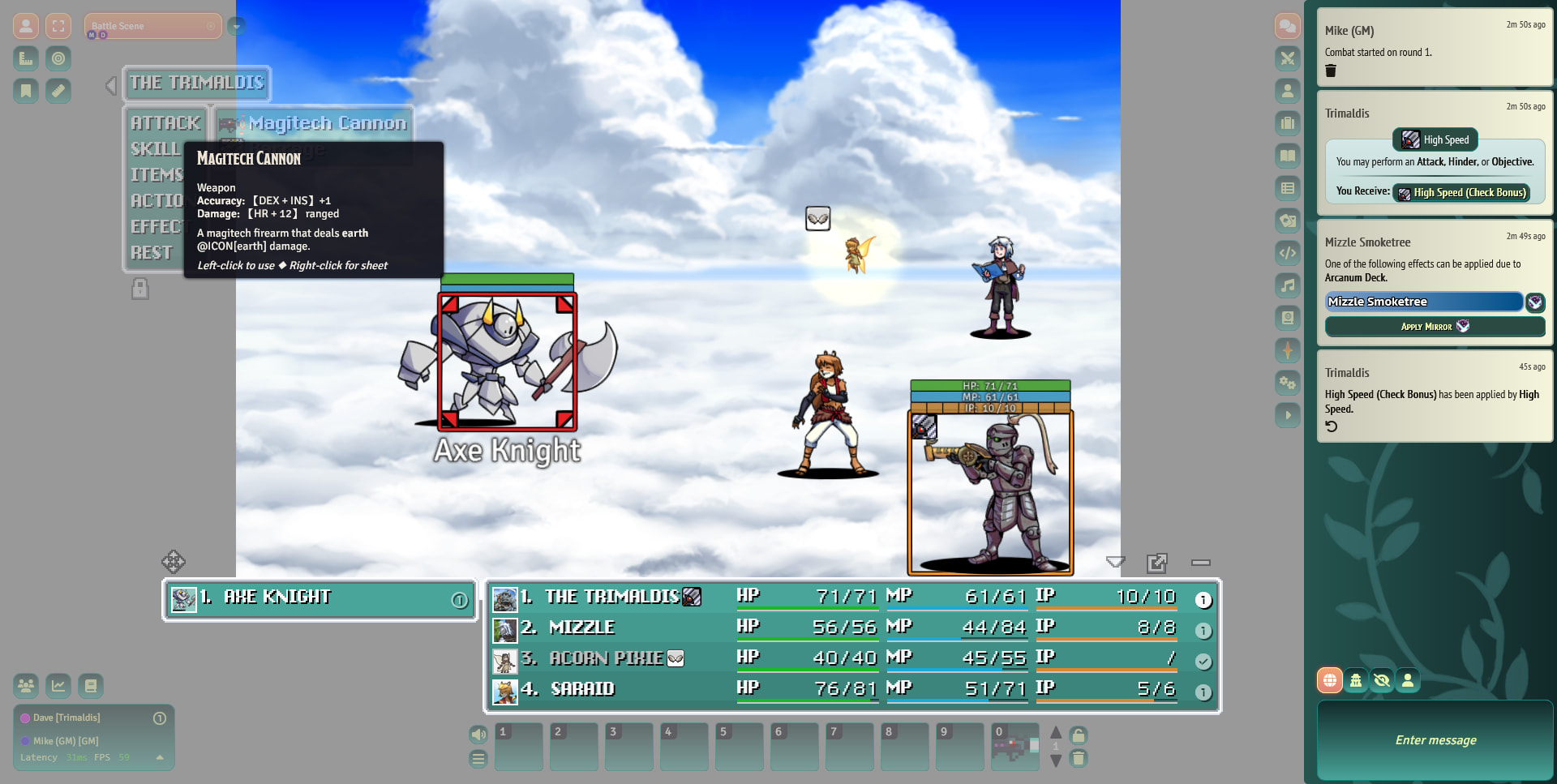
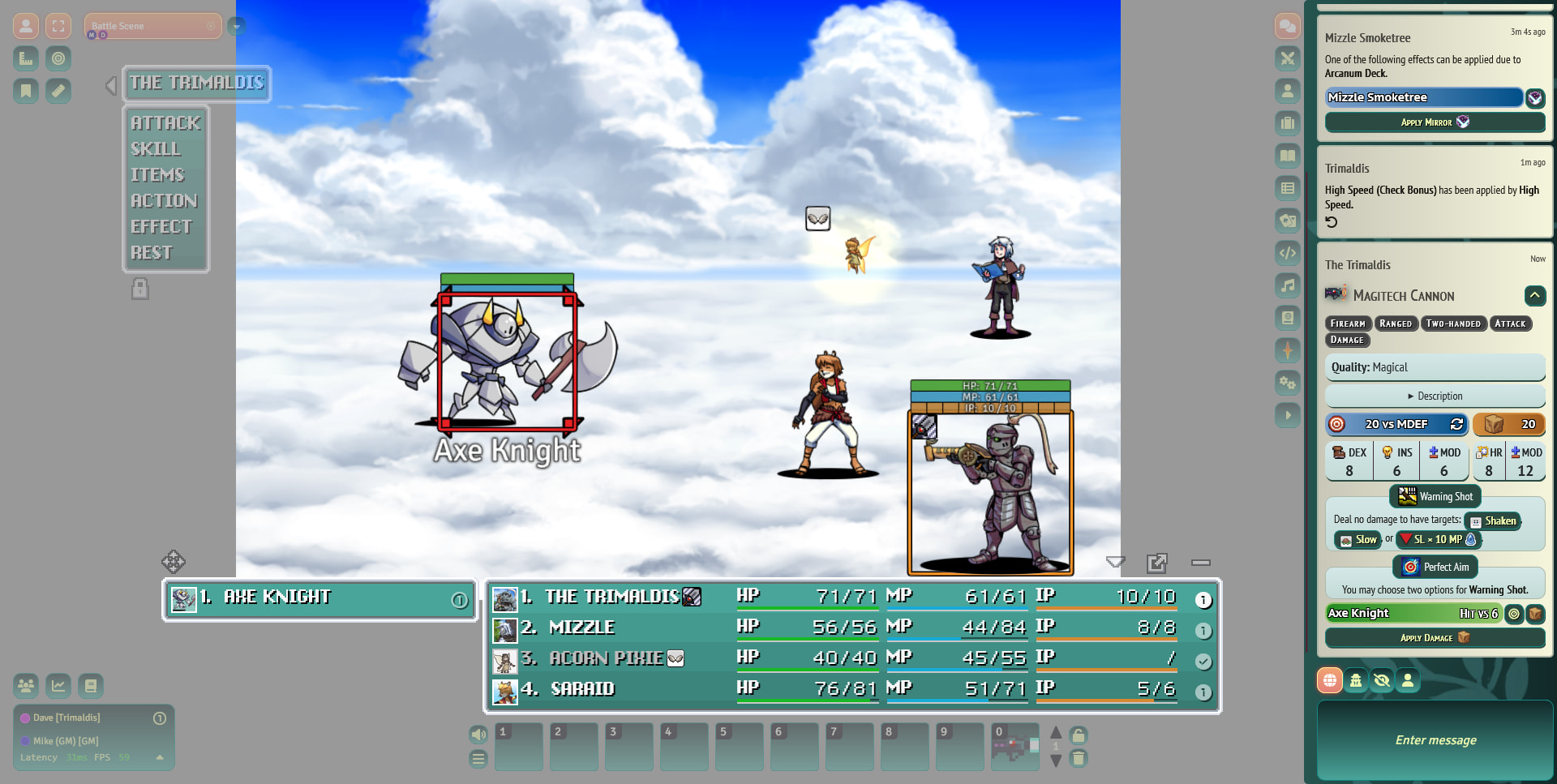
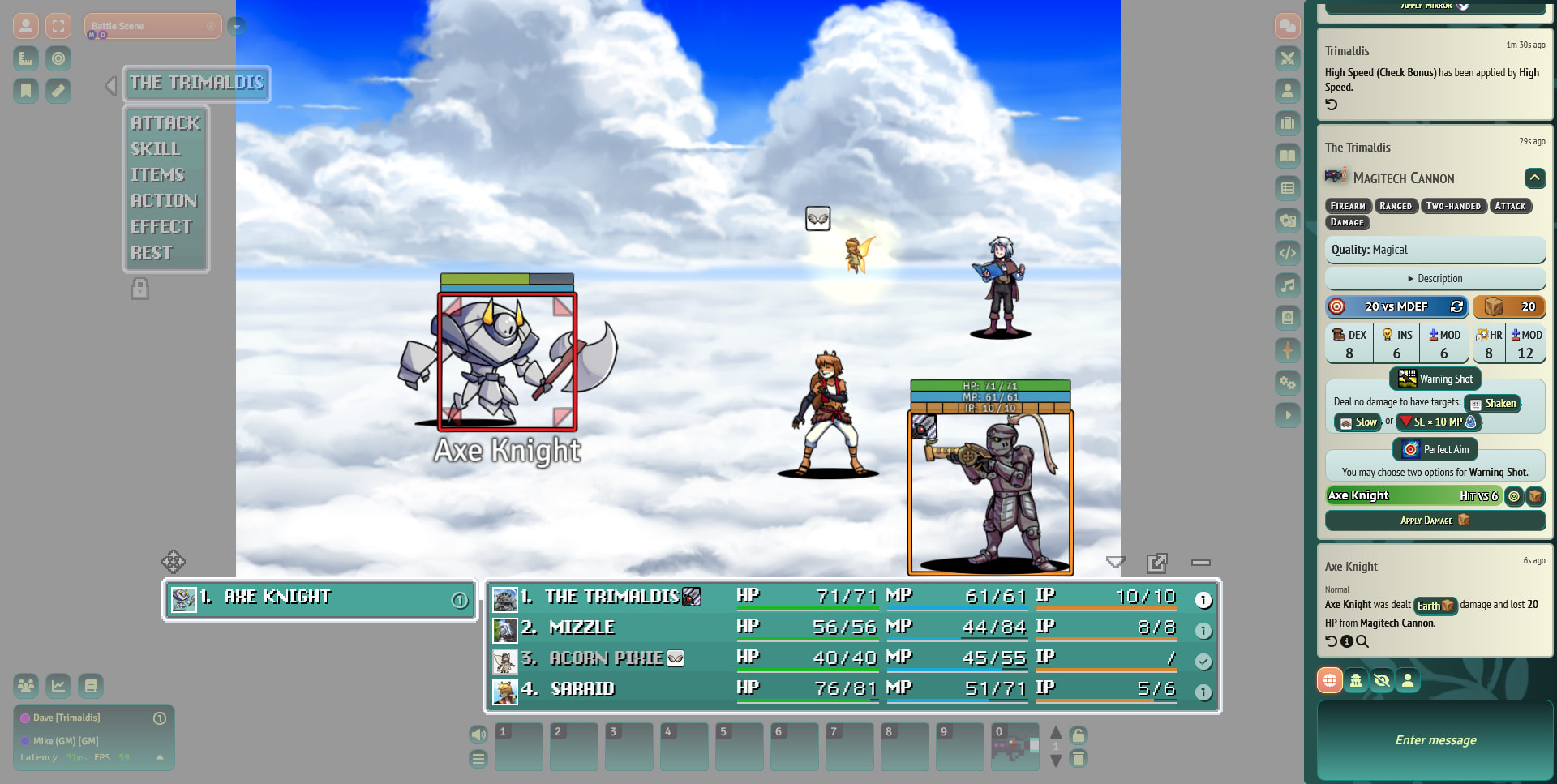
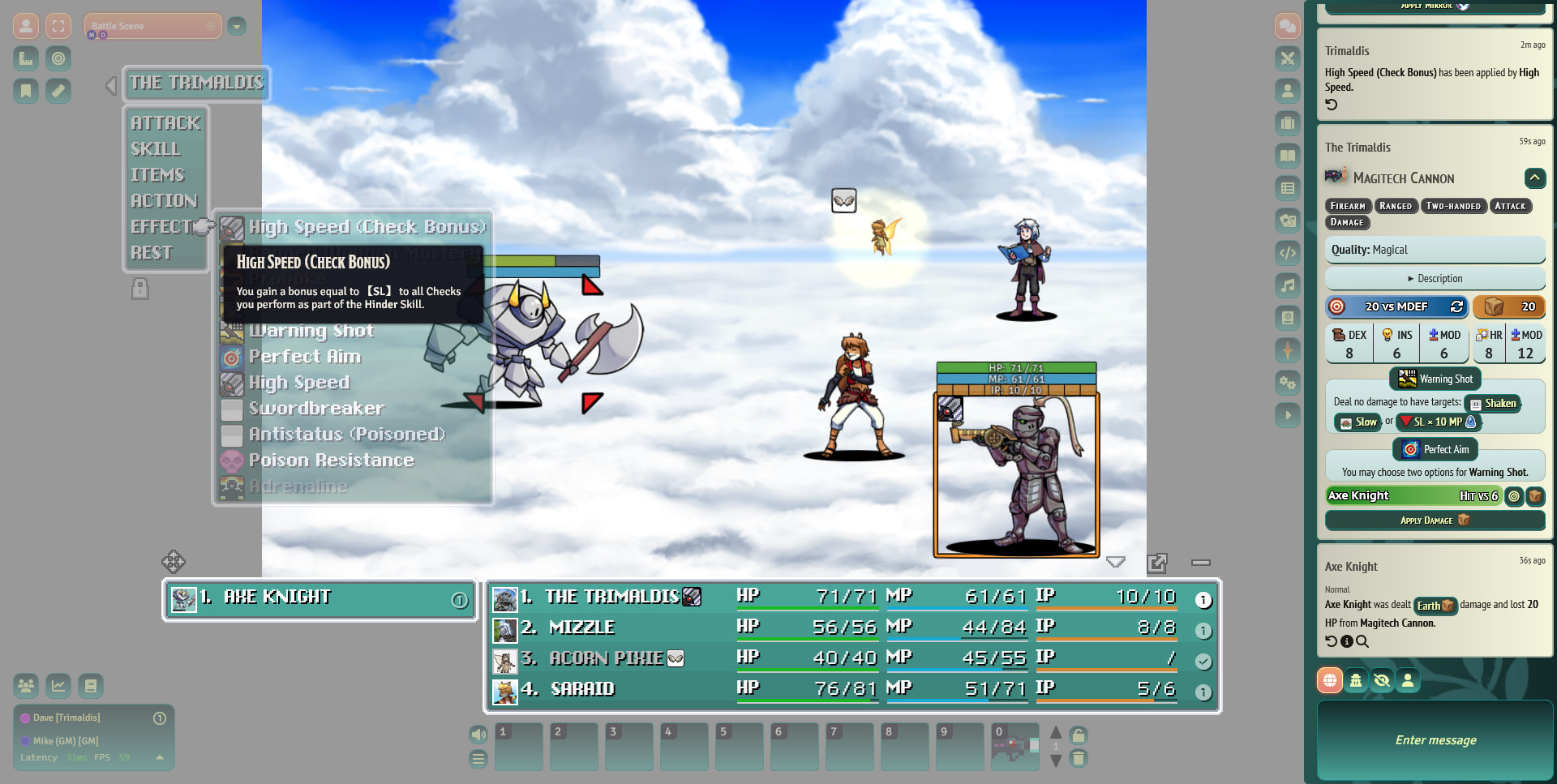
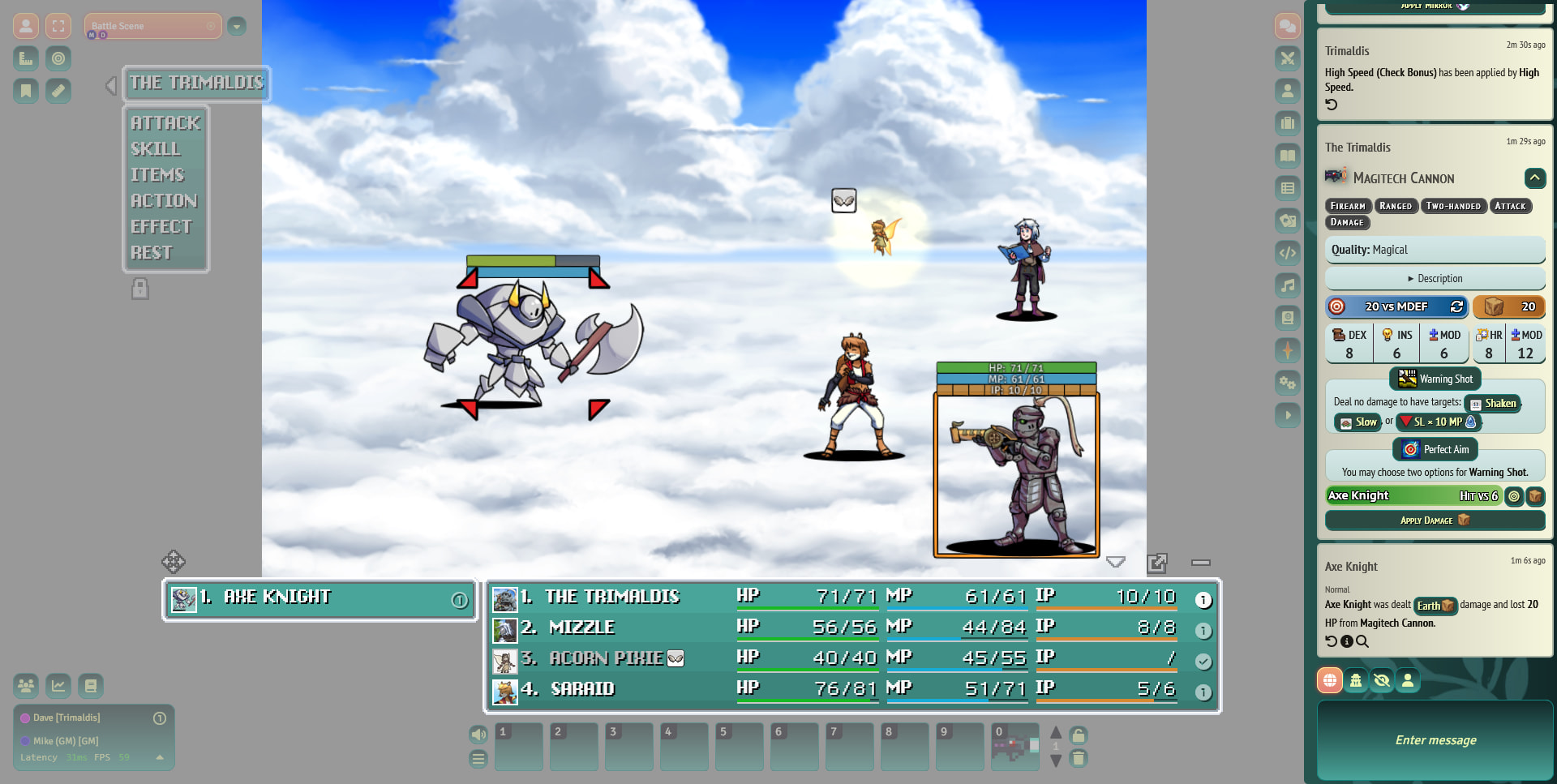
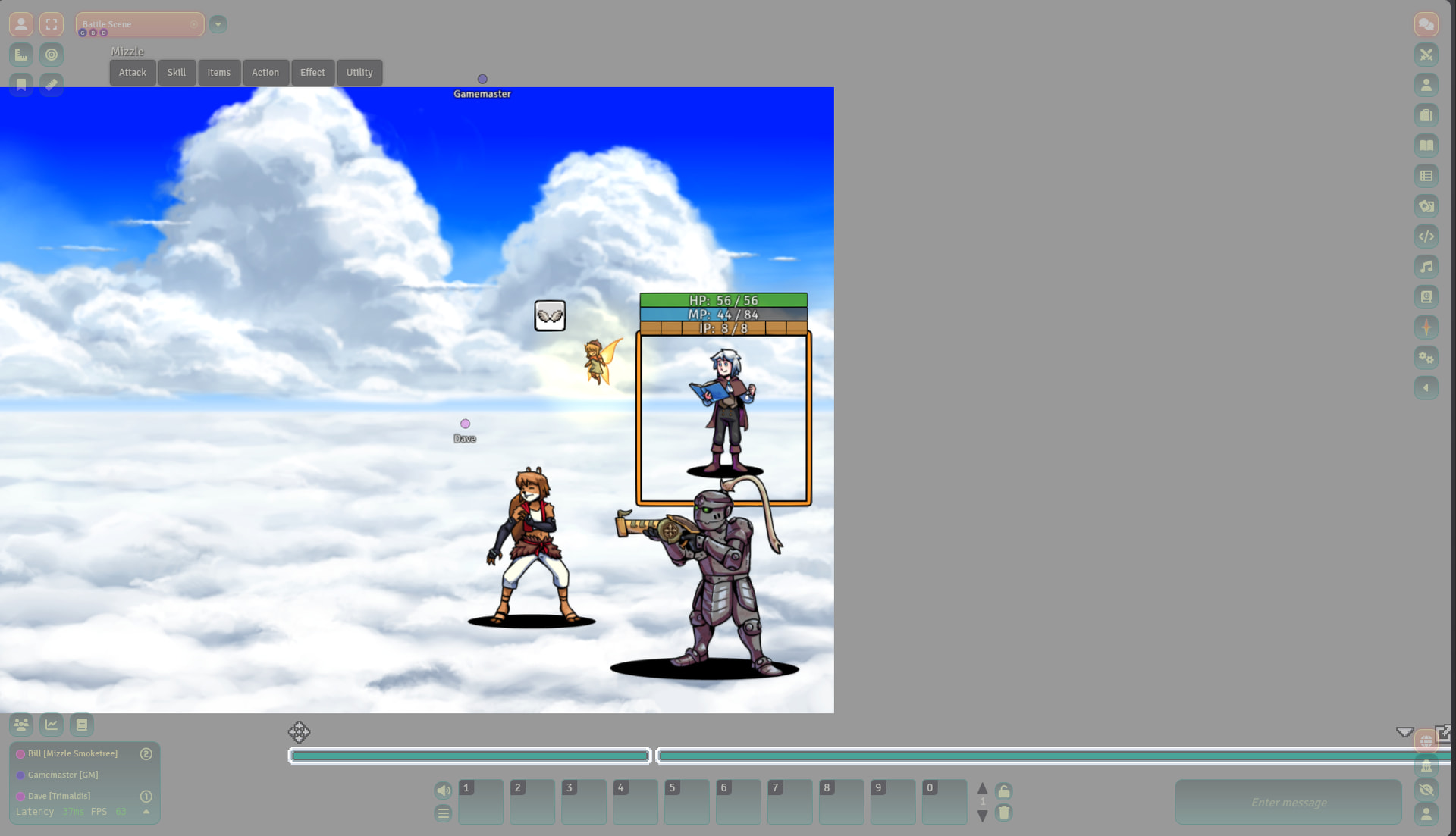
Go to the on-screen menu (top left) and choose Attack, Skill, Action, etc. Pick whatever you’re trying to do. The result will be posted into chat.

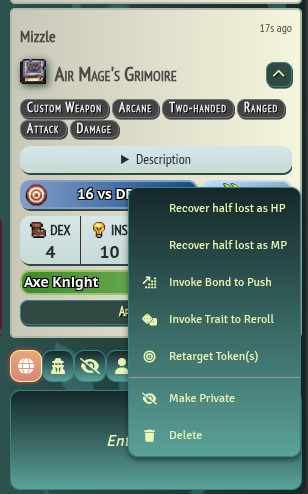
I want to reroll one or both dice, use a bond, or otherwise affect the roll

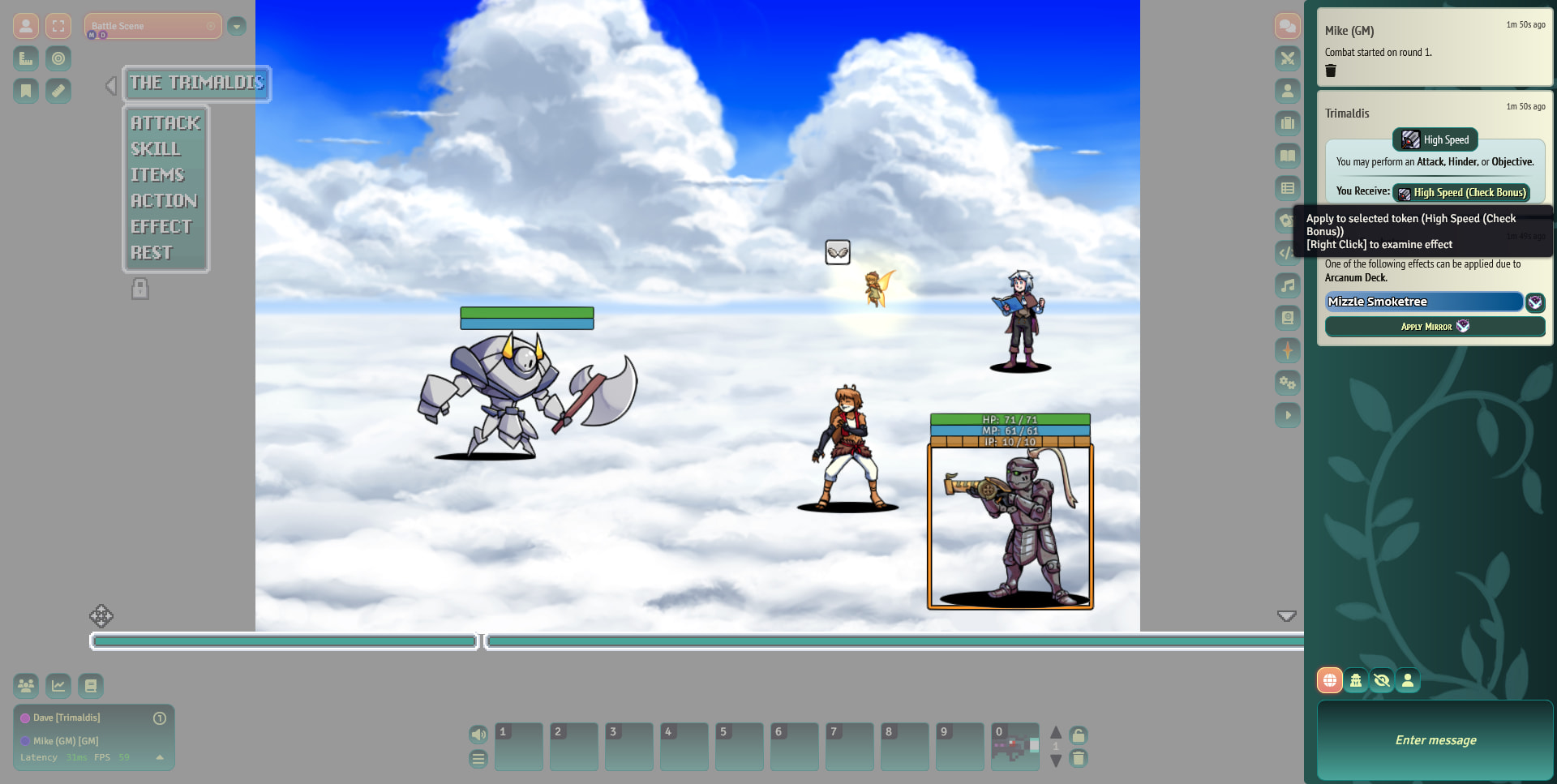
Right-click on the result (e.g. “16 vs. DEF”) and choose the appropriate option from the menu:

I want to use a Fabula point

You don’t have to manually edit the value, although you can. You can open your character sheet and just click on “FP”. It will prompt you if you want to use a Fabula point, so just click Yes.

I see a button that says “Apply Damage”, do I do that?

No - the GM will do that for you.

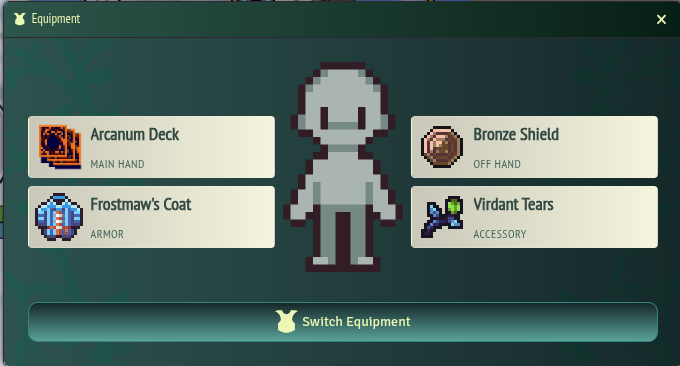
I need to rapidly switch my equipment

Go to the on-screen menu (top left) and choose Action > Equipment. Choose the gear you’re changing, then click “Switch Equipment”.

I want to update my own HP, MP, or IP

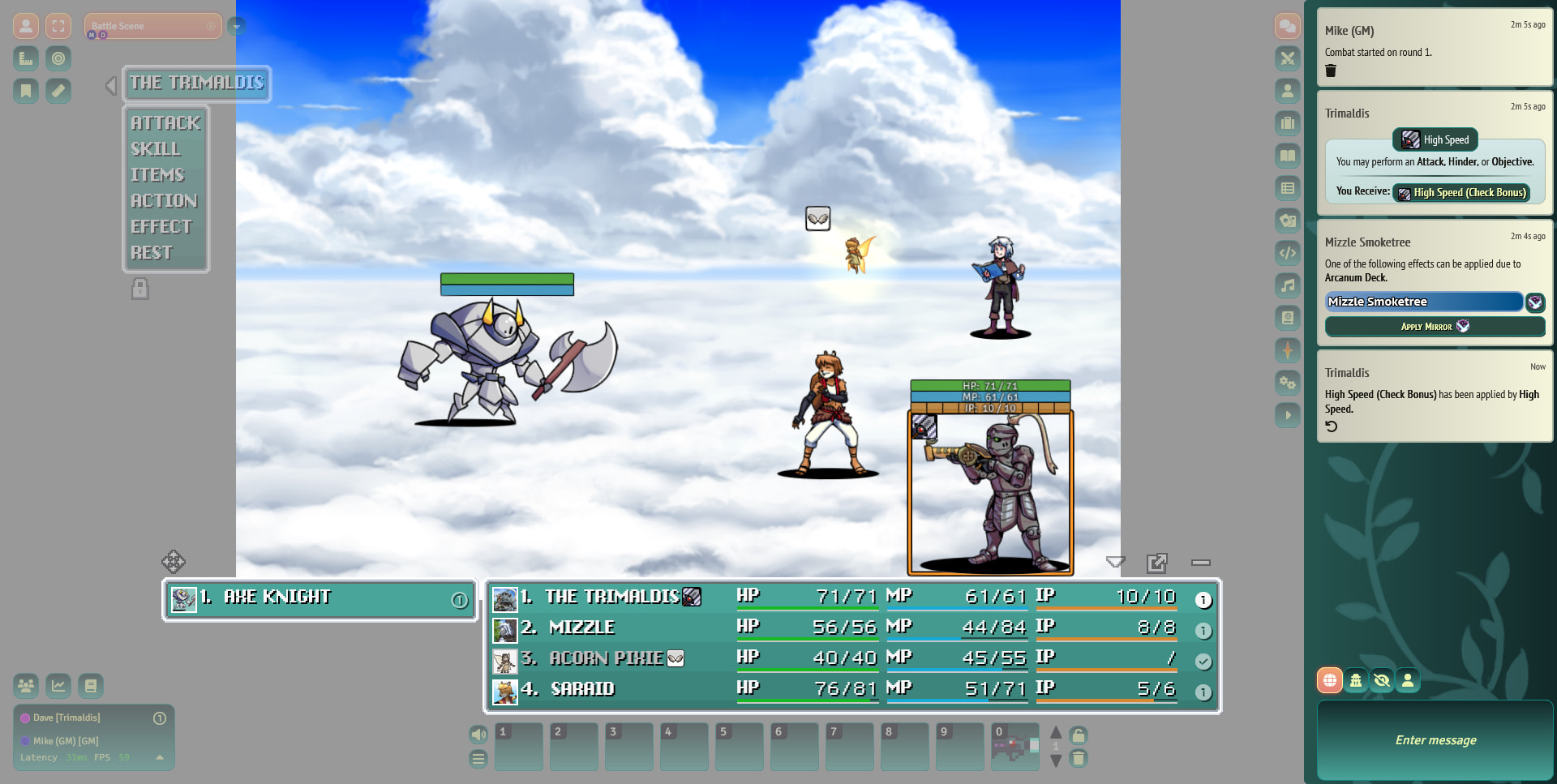
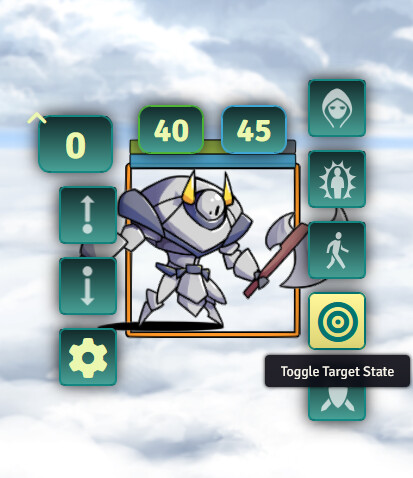
You can either edit these values on your sheet, or right-click on your own sprite on the battlefield, then update the appropriate number.

I took a status effect, how do I mark that?

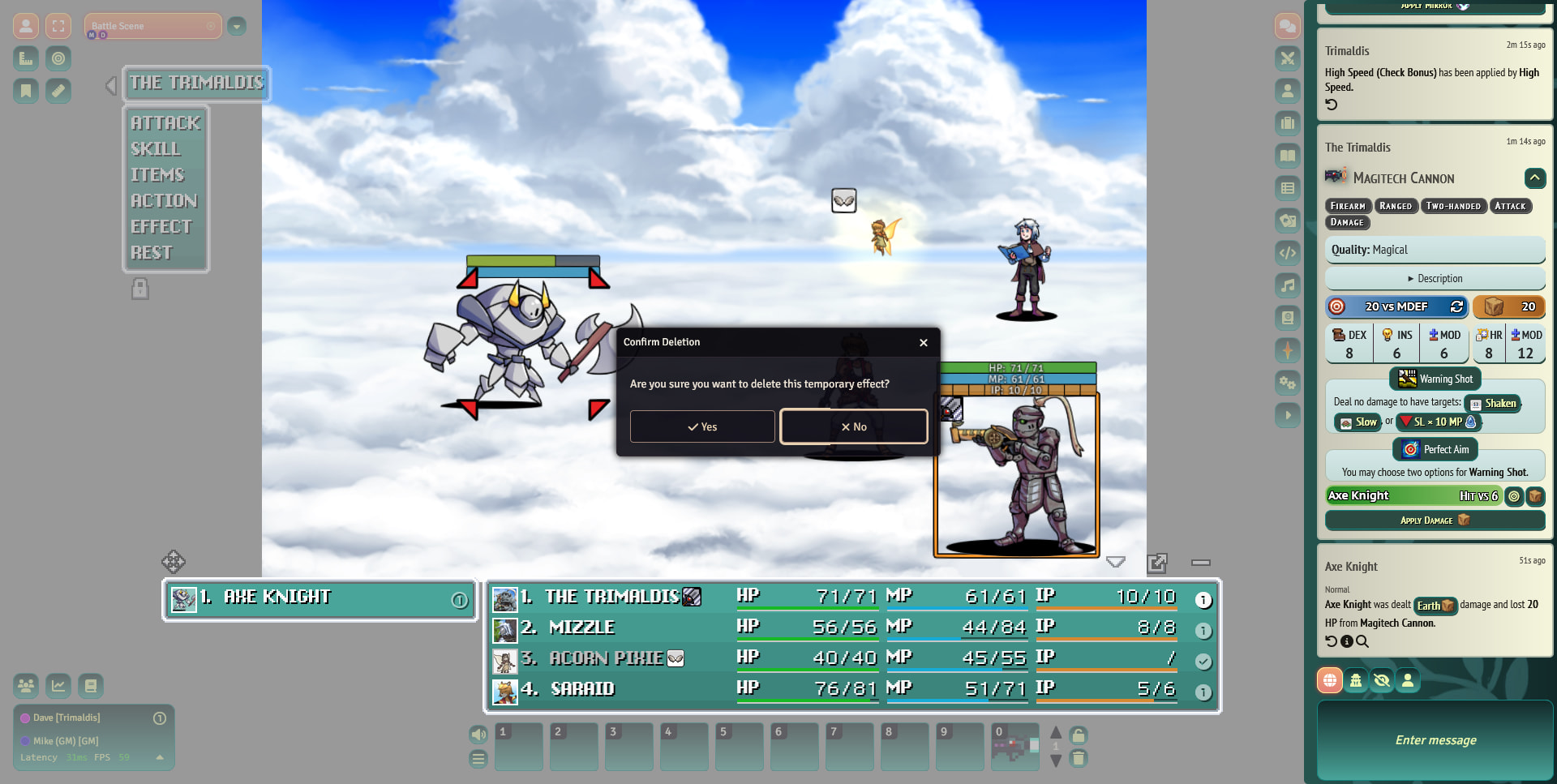
Right-click on your sprite on the battlefield, click on the “Assign Status Effects” button (top right), then select the status you want.

How do I see the World Map?
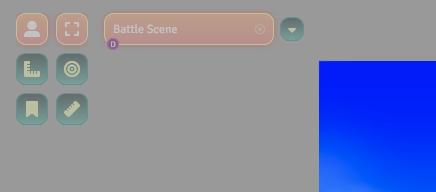
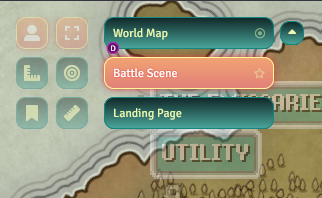
In the top left hand corner of the screen is the Scene Selector. It will have whatever screen you are on listed there.

If you click the down arrow to the right of that, it will bring up a list of scenes you can move to. You should have two always active: Landing Page and World Map. Battle Scene is the currently active scene, so it will also show up allowing you to come back to that scene whenever you’re done.

1 Like